Shopping together: how your customers bring a friend into your store
Updated on October 20, 2026
by Friendzy Team
Plenty of purchases wait on someone else's opinion. A dress for a wedding, a sofa for a shared flat, a present for a sister: the shopper finds it on your store, then leaves to ask. The link goes into a group chat, the friend opens it on another phone, and the conversation carries on somewhere you cannot see. Sometimes the shopper comes back. Often they do not.
Friendzy keeps that conversation on your store. A customer invites a friend with one link, the two of them look at the same pages at the same time, they talk it over next to the product, and each buys on their own. This guide shows what that looks like for your customers, how to set it up, and what it does for your store.
What your customers see
1. One link to invite a friend
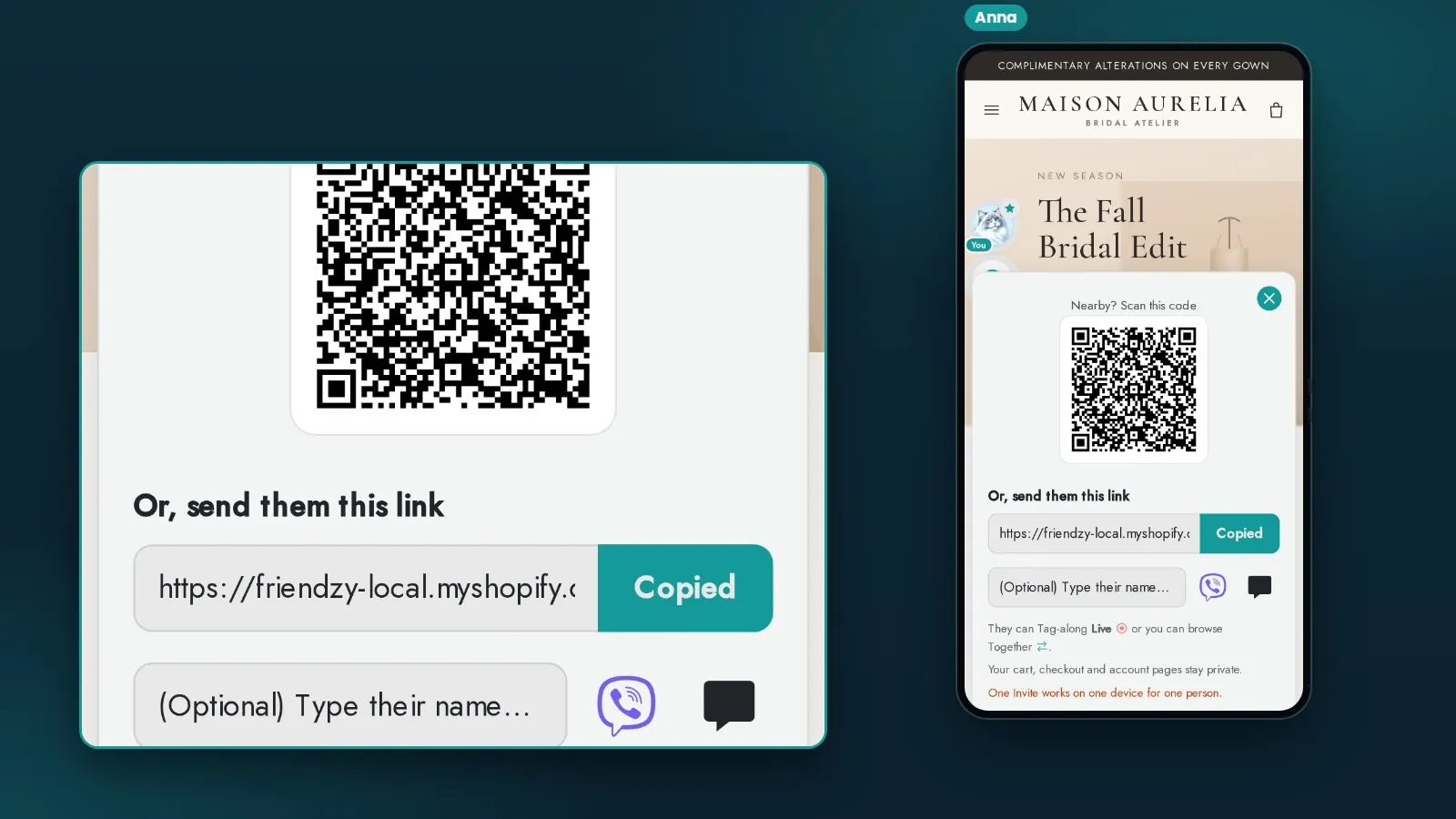
The shopper opens Friendzy from the Invite a friend button beside Add to cart, or from the invitation Friendzy offers on a product page. They get a link to send, a QR code for a friend sitting next to them, and on a phone a button that sends it through a messaging app. Each link works once, for one person on one device.
2. The friend sees what they see
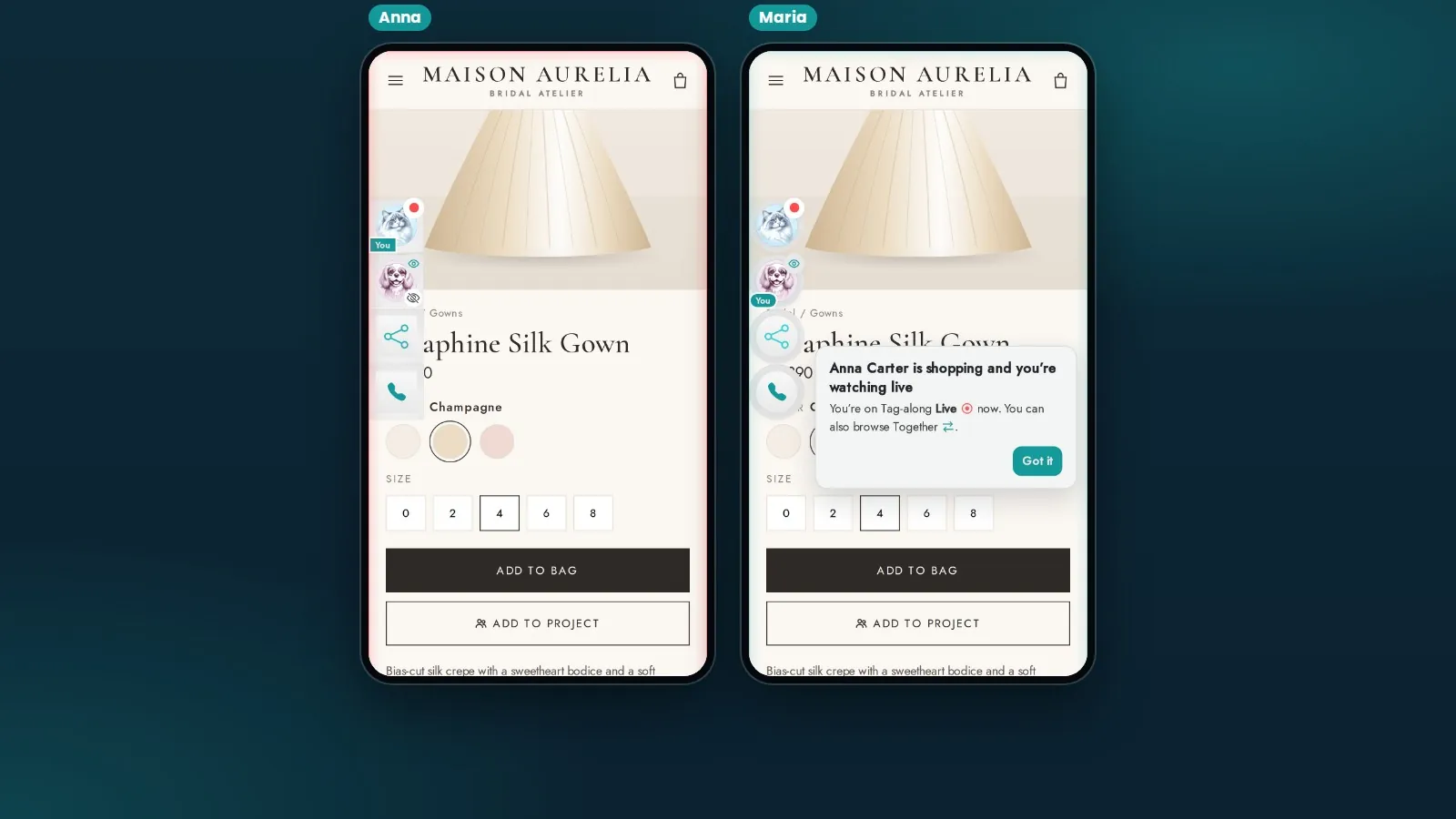
The friend taps the link and lands on your store, in the shopper's session. To begin with they tag along: their screen follows the shopper's live, page by page, down to the colour just picked. Either of them can switch to browsing together, where whoever clicks moves both of them, or to browsing on their own with the conversation still connected.
3. They talk it over next to the product
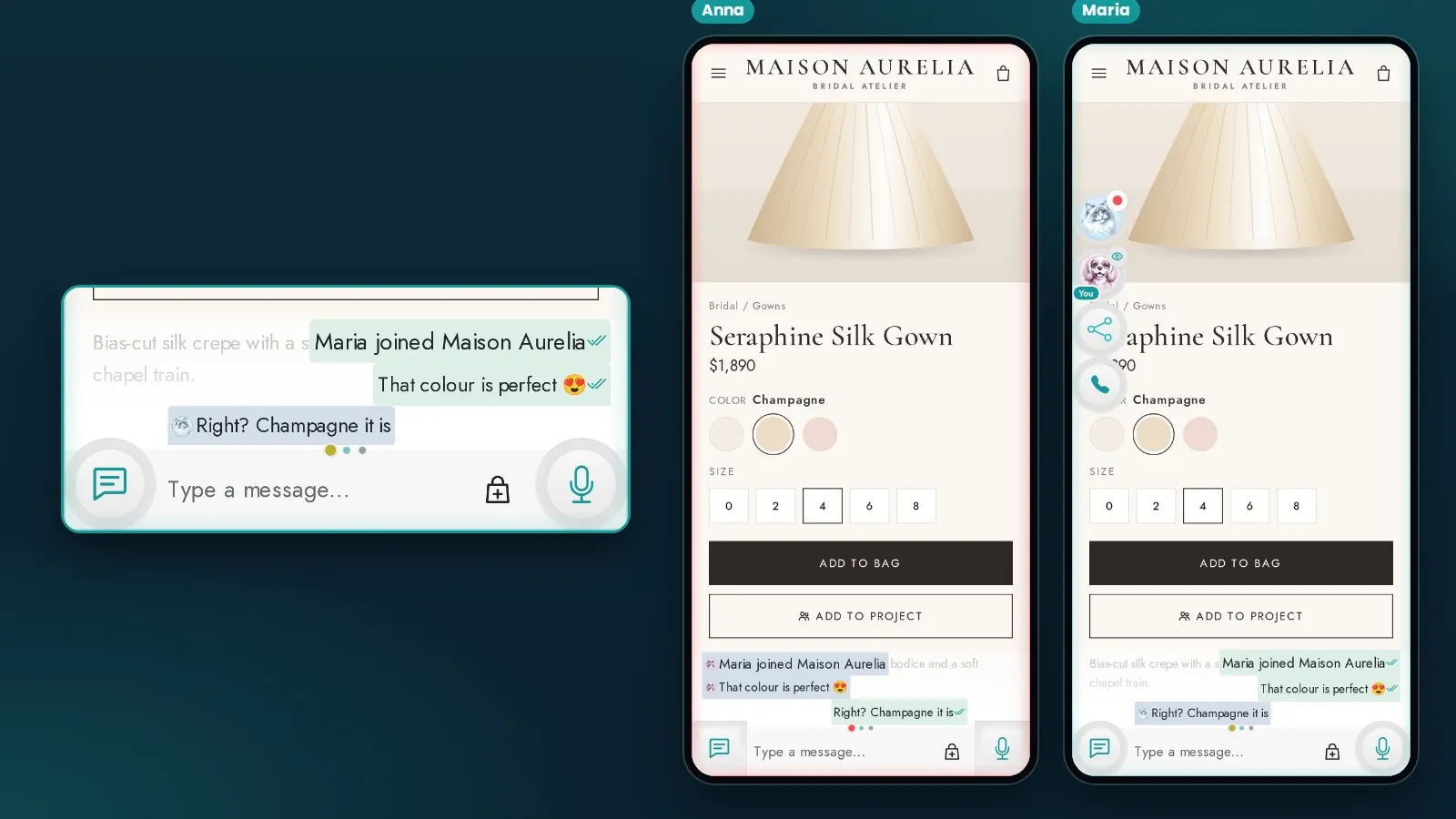
Messages and voice notes appear beside the page rather than in another app, so "that colour is perfect" is said while both of them are looking at the colour. When typing is not enough, they can start a call from the same window.
4. Each buys on their own
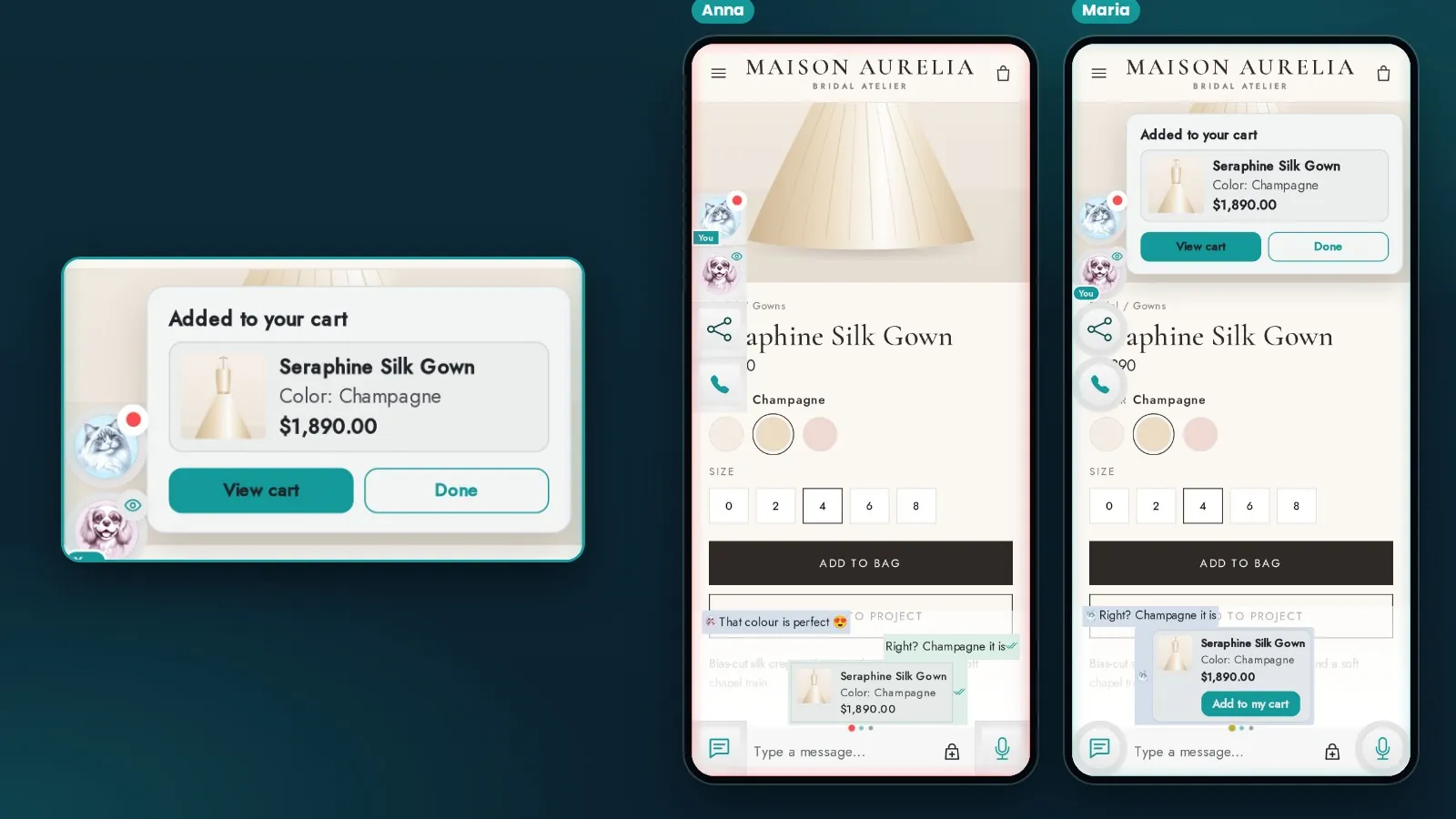
The shopper can share the exact product, size and colour they are looking at. The friend sees it as a card with an Add to my cart button, and confirms before anything is added. Nobody's cart is changed by anyone else, and each person checks out alone.
Why it helps your store
- The second opinion happens on your store. The friend looks at your product page, not a screenshot of it, with your prices, your photos and your Add to cart button.
- Every invite brings a new visitor. The friend who arrives through an invite may never have seen your store a minute earlier, and they arrive with a reason to look.
- Decisions get made rather than put off. "Let me ask and come back" becomes a conversation that ends while the shopper is still there.
- Two people can buy. The friend has a cart of their own, so one shared item can become two orders, as it does when two guests dress for the same wedding.
- It suits the purchases that need it most: clothing and bridal, furniture and home, gifts, beauty, jewellery, and anything people like to choose with someone.
Setting it up
Friendzy is installed from the Shopify App Store and set up from its home page in your Shopify admin. The first is telling Friendzy what you sell, so it can suggest settings that suit your store.
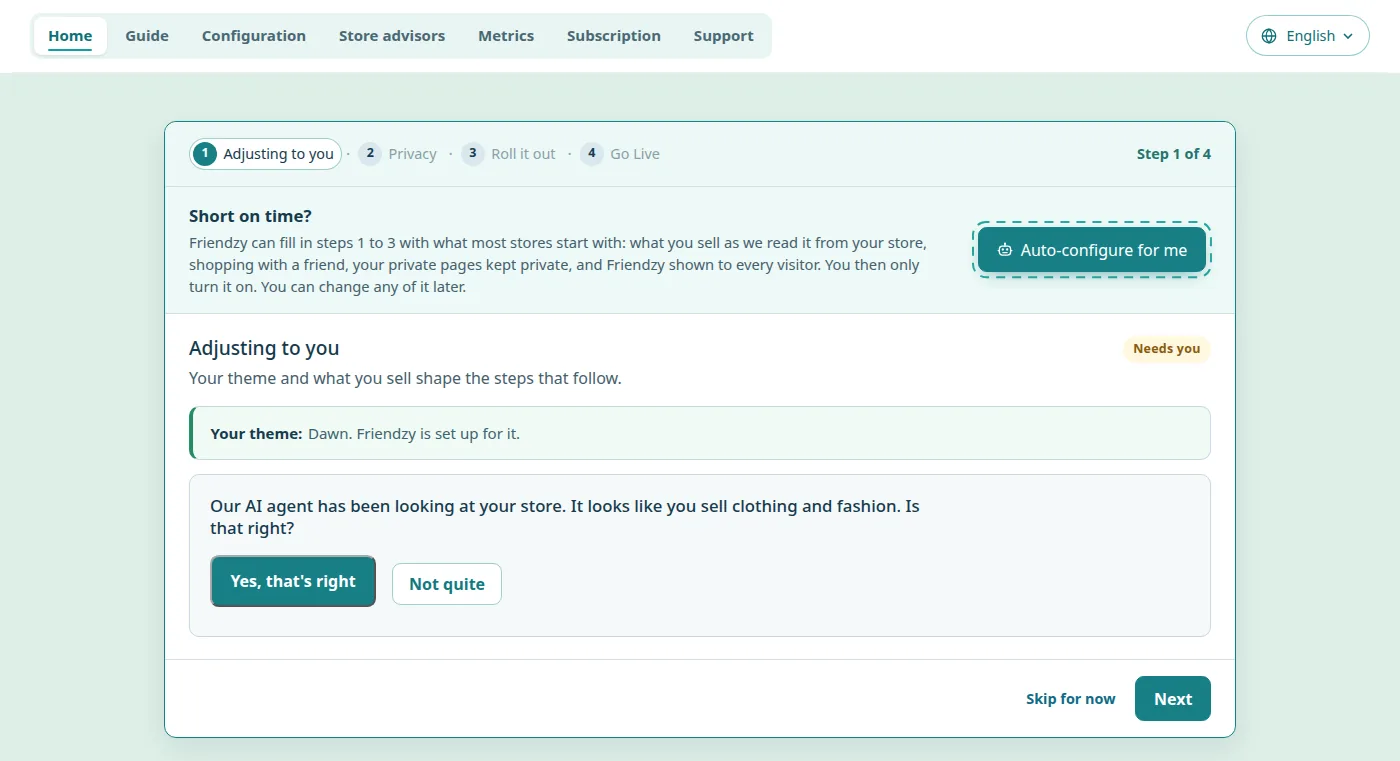
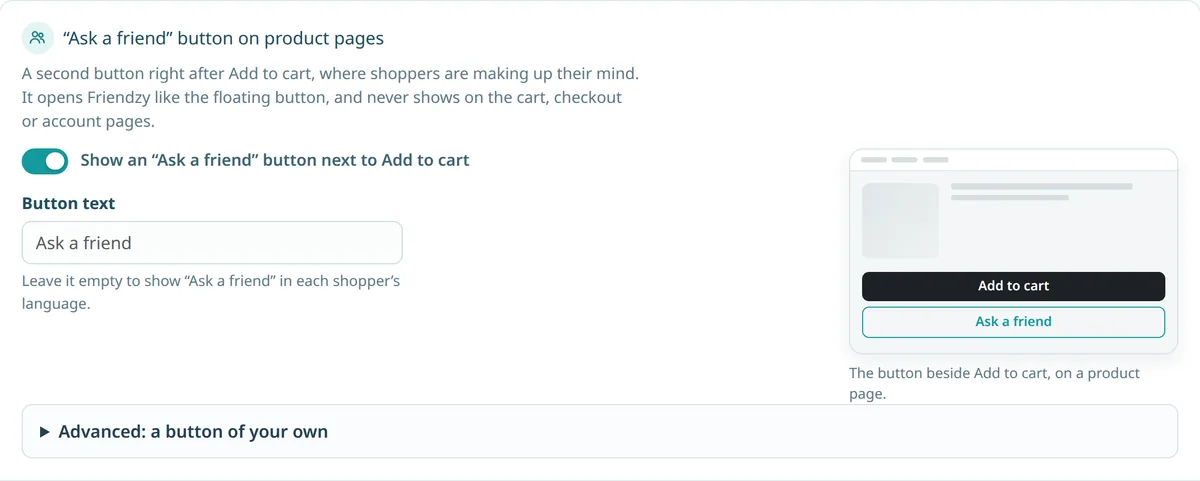
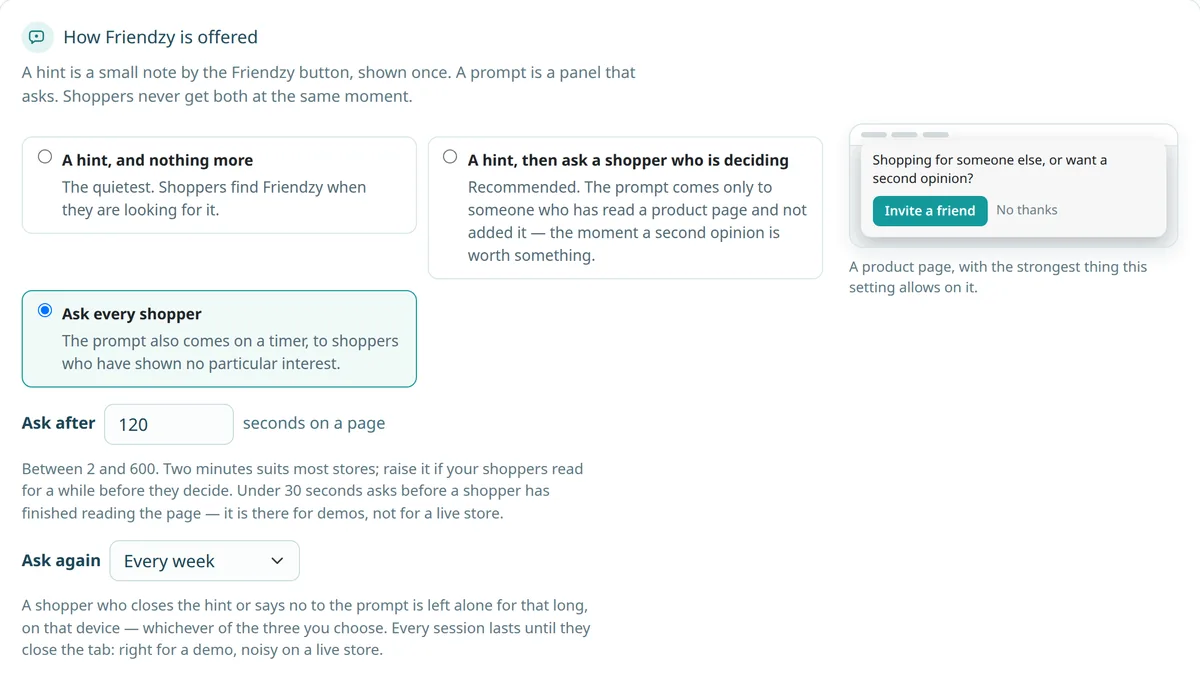
Two settings decide how your customers find shopping together. Both are in Configuration, under Introducing Friendzy to your customers.
The Invite a friend button. A second button right after Add to cart, where shoppers make up their minds. It is on unless you turn it off, it never shows on the cart, checkout or account pages, and you can change its text.
How Friendzy is offered. A small hint by the Friendzy button, shown once, or an invitation that asks. The recommended setting asks only a shopper who has read a product page and not yet added it to the cart: the moment a second opinion is worth something. You can write the invitation in your own words.
What stays private
Shopping together is about your store, not about the shopper's account. Cart, checkout and account pages are never shown to anyone else: when the shopper goes there, the friend sees a short notice instead of the page. Each person pays for their own order. The friend does not have to sign up for anything to join, and you choose which other pages of your store stay private as well.
Getting the most out of it
- Show it to everyone. Shopping together is worth most when the shoppers who need it can find it. If you prefer, start with a share of your visitors and raise it when you are ready.
- Thank the people who bring a friend. A reward, such as a discount code for the shopper and for the friend who joins, gives an invite a reason to be sent.
- Tell your customers it is there. A line in your emails or posts, such as "Shopping for a gift? Bring someone along", does more than waiting for them to find the button. Campaign links in Configuration show which message brought people in.
- Look at what happened. The Metrics page shows the invitations your shoppers sent, the friends who joined, and the orders placed by shoppers who had a friend with them.
Try it on your own store
Friendzy has a free plan, so you can try shopping together on your store before deciding anything. Install it from the Shopify App Store:
https://apps.shopify.com/friendzy
Then open your store on your phone, tap Invite a friend on a product, and open the link on a second device. In a minute you will see exactly what your customers will.